Hi Ernst,
Ok - the problem is because you're probably using the user's gmail password instead of generating an App Password.
I followed these steps, and successfully sent email from Jiwa using my Gmail account.
1. Enable the "Email - Configuration SMTP" plugin in Jiwa, and disable all others.
2. Quit Jiwa and log back in.
3. Open the System Configuration form and on the "Email - Configuration SMTP" tab, set the values:
SMTPServerAddress : smtp.gmail.com
SMTPServerPortNumber : 587
SMTPRequiresSSL : checked
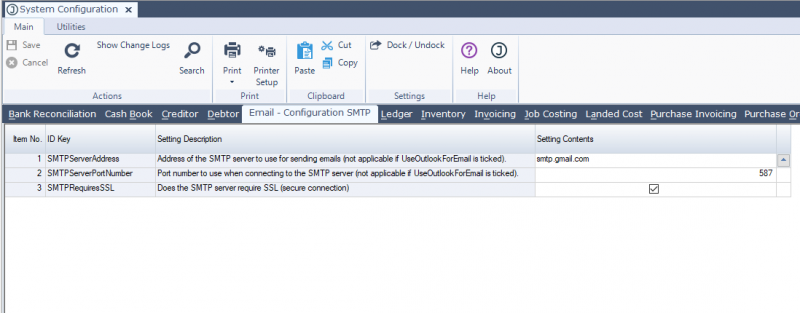
- System Configuration
4. Open staff maintenance and for the gmail user(s), set the Email Settings - Address (gmail email address), and SMTP Username (this will be their gmail email address also) - you won't have a password yet, we'll get that in the next step
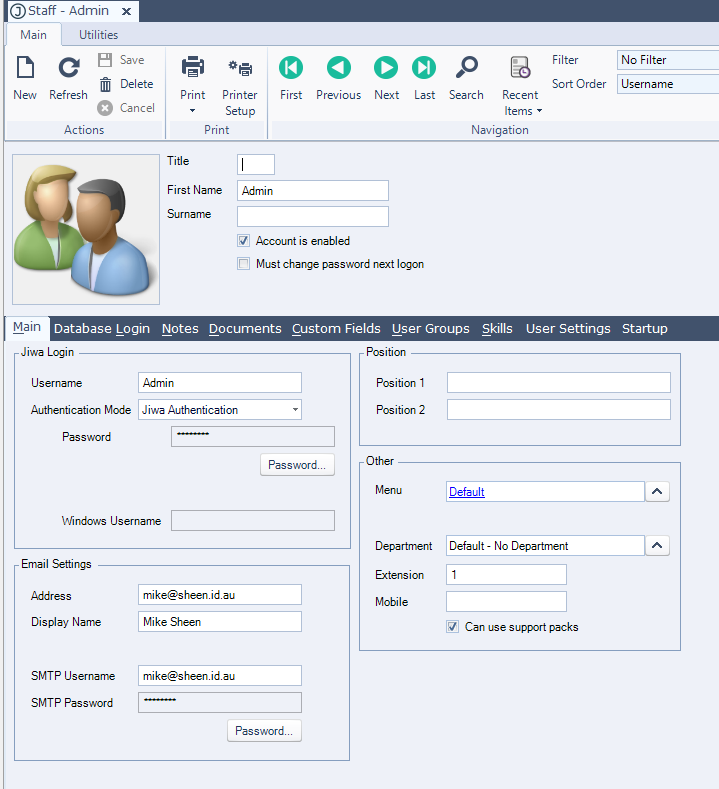
- Staff Maintenance
- StaffMaintenance.PNG (67.38 KiB) Viewed 4215 times
5. Visit the
App Passwords page of Gmail and select the "Select App" dropdown in the "Select the app and device for which you want to generate the app password." section
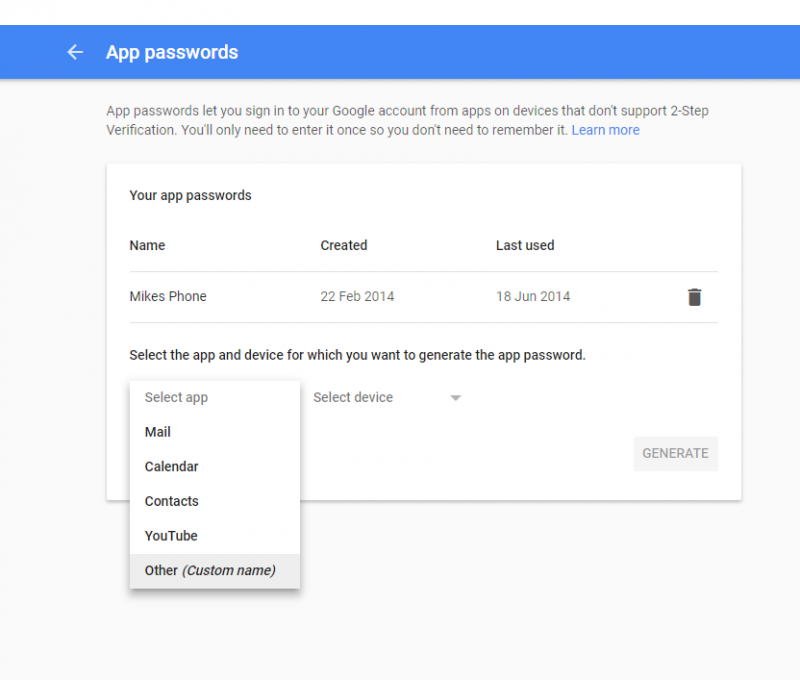
- App Passwords
6. Type in Jiwa as the name of the App and press the Generate button.
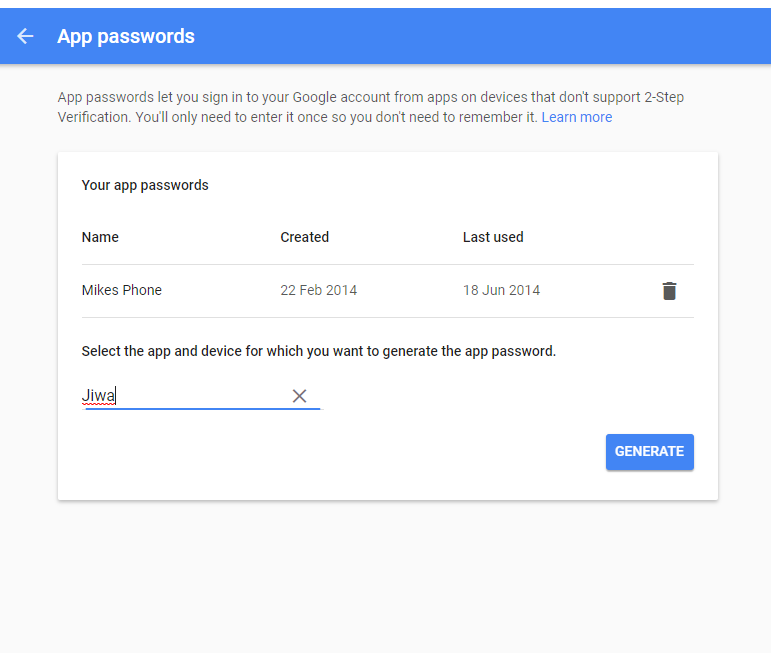
- App Password Generate
- Gmail_App_Passwords_Generate.PNG (28.98 KiB) Viewed 4215 times
7. An App password will be shown to you, Select it and copy it to your clipboard.
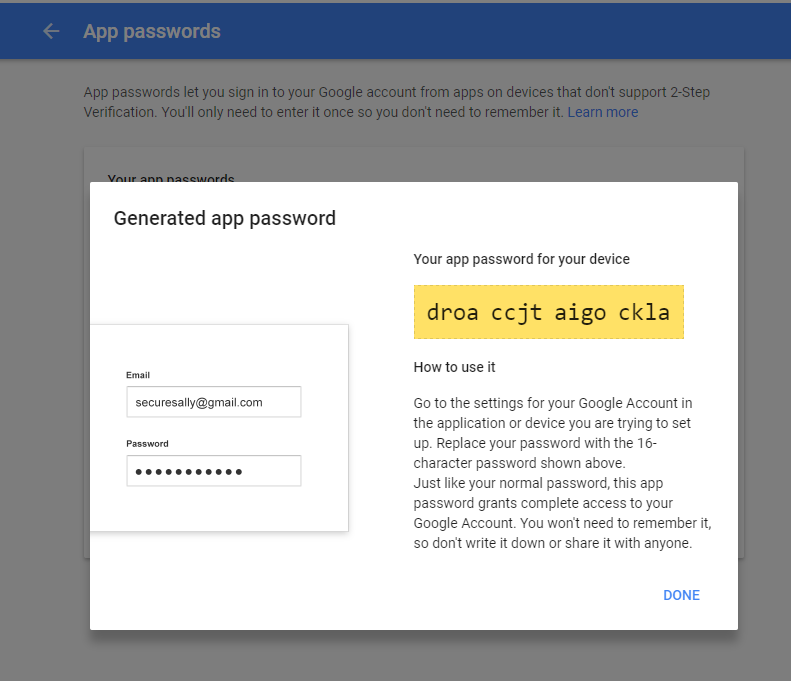
- App Password Generated
- Gmail_App_Passwords_Generated.PNG (51.92 KiB) Viewed 4215 times
8. Back in Staff Maintenance in Jiwa, press the "Password..." button of the Email Settings section, and paste in the password
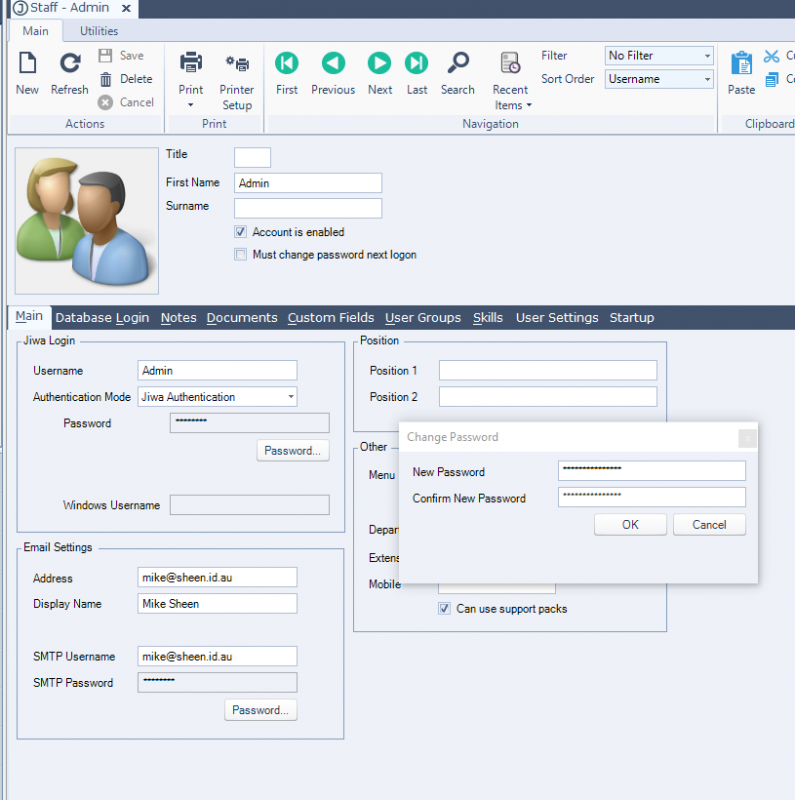
- Staff Maintenance SMTP Password
9. Save
Then that staff member will be able to send emails using their gmail account.
I've added a How-to article on our document Portal with the above:
Use a GMail account to send emails.
 Posted: Wed Jun 07, 2017 10:28 am
